
Apple’s New Child-Safety Tools Give Parents More Control Over Contacts and Content
With iOS 27, Apple is redesigning Screen Time and expanding contact approvals, Ask to Browse, Time Allowances, and Communication Safety. What changes, what parents must turn on, and what the tools still cannot do.
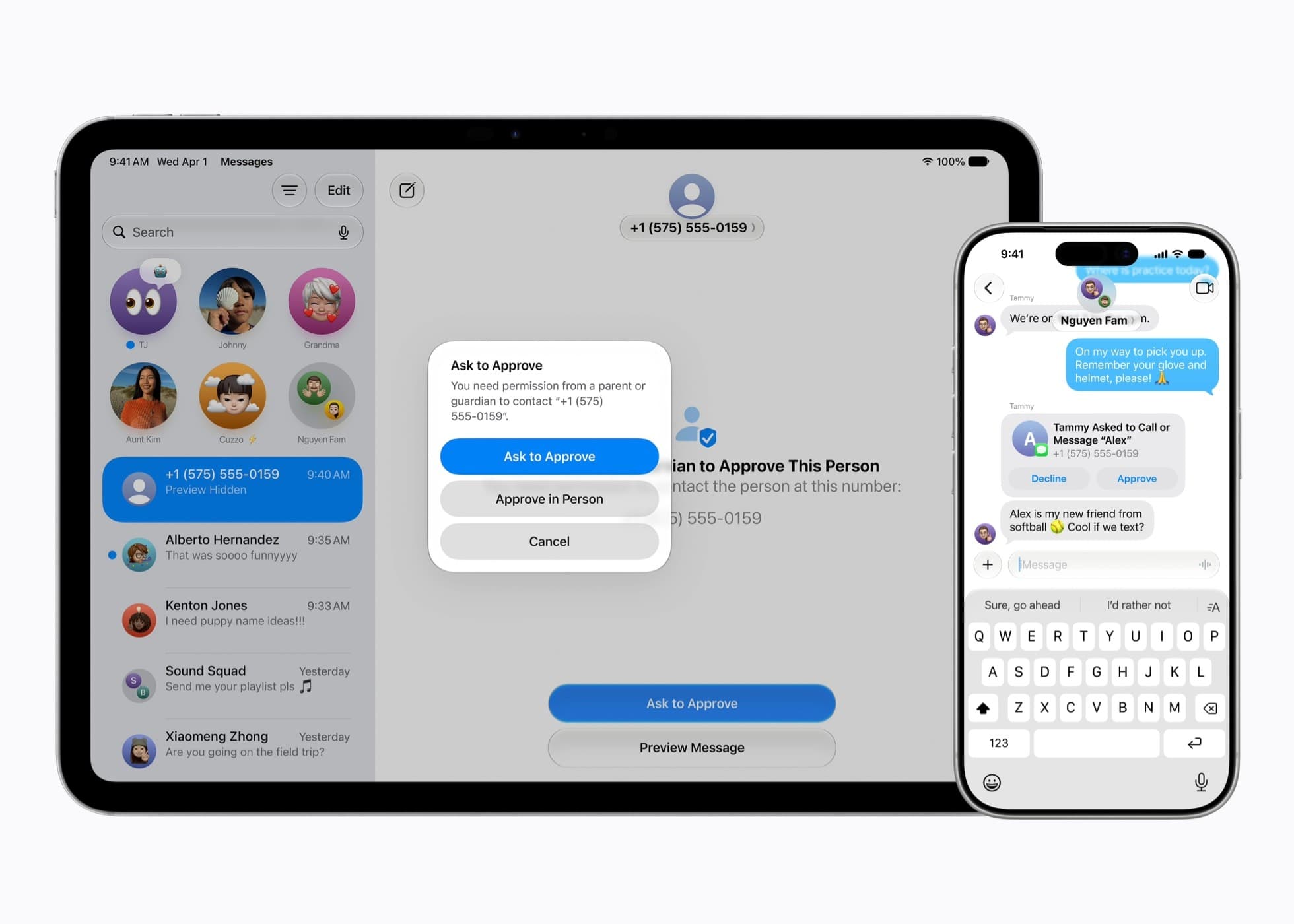
Parental controls fail in two opposite ways. They are either too blunt to use, or so quiet that families never finish setup.
Apple’s June 2026 child-safety preview aims at both problems. With software updates arriving in the fall for iOS 27, iPadOS 27, and macOS 27, Apple is redesigning Screen Time and adding clearer tools around content, contacts, and when apps are available.
The new controls can change daily life if a parent configures them. They still leave real gaps outside Apple’s apps and outside any filter.
Here is the practical map: what changes, what Apple can filter, what you must set up, and what no setting can promise.
Better parental controls only help the households that finish setup and still talk about the gaps filters cannot see.
What actually changes in Screen Time
Screen Time is getting a redesign meant to show average use and most-used apps at a glance. Parents can pause access quickly for meals or outdoor time, or extend a little when a child needs to finish something.
Time Allowances add category-level daily limits for areas such as Entertainment, Games, and Social Media. Apple says parents also get age-based research guidance as a starting point they can adjust.
Schedules let families decide which apps are available at which times of day across the week, which is the school-night tool many households have been improvising by hand.
Ask to Browse is new for Safari. Parents can require permission before a child opens a new website, across iPhone, iPad, and Mac. Ask to Buy remains the gate for App Store downloads and in-app purchases.
Contacts and content: what Apple can filter
On contacts, parents can manage who a child connects with over Messages, FaceTime, and Phone from the start. Kids can be required to ask before connecting with anyone new. Apple’s preview and reporting describe approval flows in Messages, so an unknown sender does not simply open a quiet chat channel without a parent seeing the request.
On content inside Apple communication apps, Communication Safety already blurs detected nudity in Messages and FaceTime for users under 18 by default. The update adds intervention when gore or violent content is detected in shared images or videos.
Those filters are detection tools, not a human reviewer in the room. They can miss material, and they can over-flag. They also live where Apple says they live: Messages and FaceTime in the Newsroom description, with developer frameworks available if other apps choose to adopt similar protections.
Outside that circle, a WhatsApp thread, a school Chromebook, a cousin’s unlocked phone, or an unapproved third-party app can still bypass the story you thought Screen Time was telling.
What parents still have to configure
Apple’s own first step is blunt: set up a child account. It is required for children under 13 in Apple’s framing (minimum ages can vary by country or region) and available up to 18. A child account is what turns on age-based media limits, App Store restrictions, and the wider parental-control stack.
Then choose the starting app set. Apple’s setup path offers essentials-only or a curated starter set, with room to add apps later through Ask to Buy.
Turn on the contact-approval rules you actually want. Decide whether Ask to Browse belongs on for your child’s age. Set Time Allowances and Schedules that match school nights, not an imaginary perfect week.
Keep devices in the Family Sharing group updated together. Coverage of the iOS 27 rebuild has stressed that parental settings sync more cleanly when the family’s software is current.
Finally, use Apple’s parent resources and the AAP-informed Family Media Plan thinking as a conversation starter, not as a substitute for knowing your child.
What these tools cannot protect children from
They cannot replace judgment. A contact approval stops a stranger’s first ping on Messages. It does not teach a teen what to do when a classmate they already know asks for a photo.
They cannot cover every app. PermissionKit and Sensitive Content Analysis help only where developers integrate them. Communication Safety’s Newsroom promise is tied to Apple’s communication experiences unless another app opts in.
They cannot catch every harmful image. On-device detection is a filter with error rates, not a guarantee.
They cannot govern the physical world: sleep, bullying at lunch, a friend’s device, or an adult who shares a password “just this once.”
And they cannot finish themselves. A redesigned Screen Time still needs a parent who opens it after dinner, answers Ask to Browse requests, and keeps the passcode off the child’s sticky note.
Pair this with our Lingokids brief on early tech fluency. Kids may know which icon to tap. Parents still own the gate.